Save the journey, not just the city centre
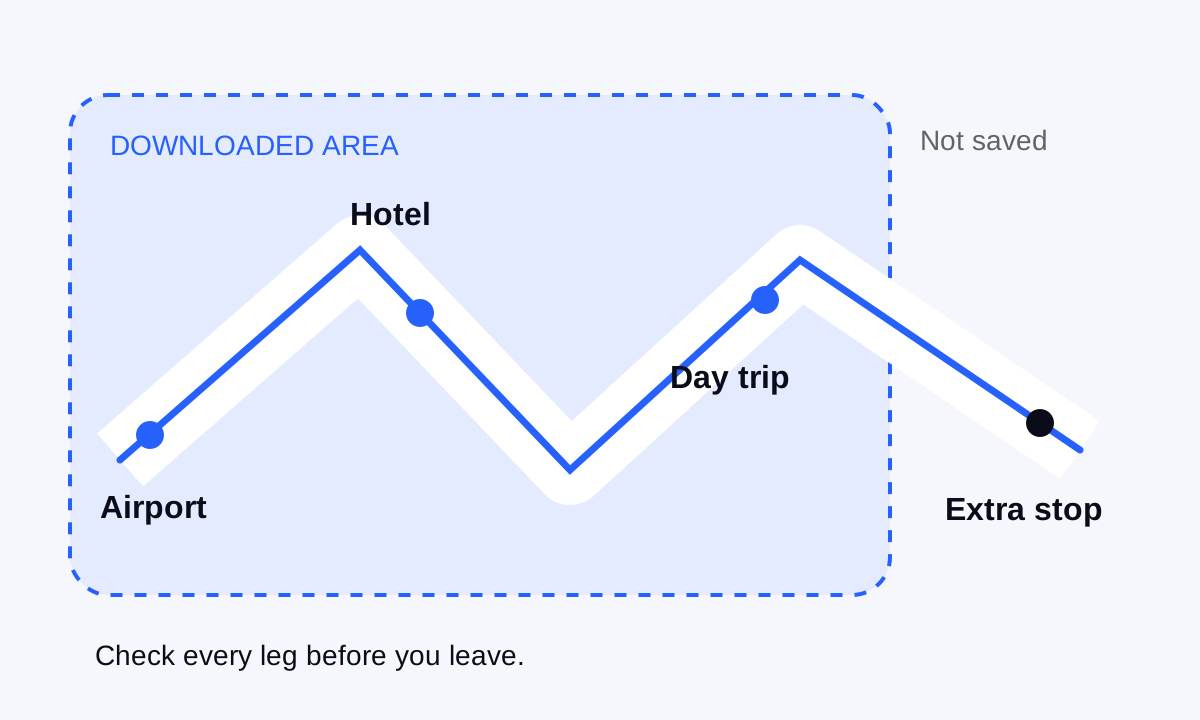
Think through the route from the moment you arrive: airport or station, accommodation, the neighbourhood you will explore and any day trips. A map centred on the hotel may miss the road from the airport or the town you plan to visit tomorrow.
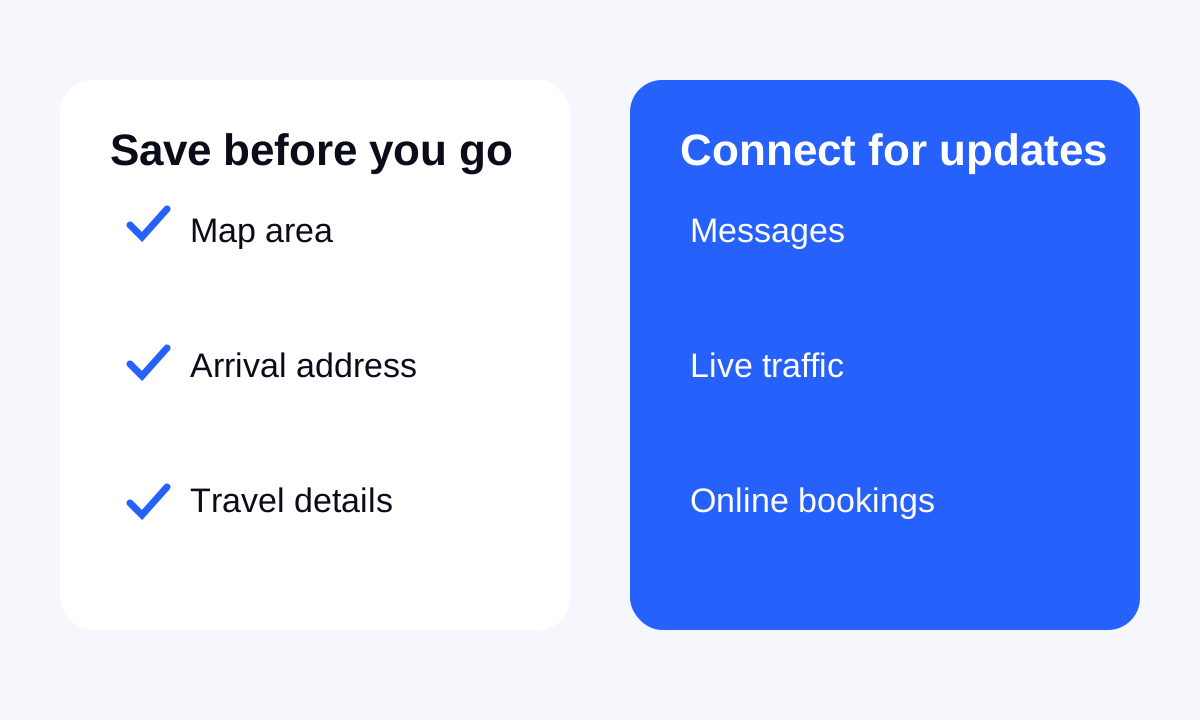
Leave enough space on the phone for the download and check the saved area after it finishes. Save the accommodation address and arrival instructions separately too. A map is useful for orientation, but it does not replace a door code, the name of a station exit or a ticket you need to show.
If you use Google Maps, check the offline limits
Google Maps lets you download an area where the feature is available. On Android, open your profile menu, choose Offline maps, select your own map area and download it while connected. Make the area large enough for the complete route you intend to use.
Google’s documentation says offline driving guidance requires the route to stay within the downloaded area. Offline transit, walking and cycling directions are unavailable, and offline driving does not provide traffic information or alternative routes. Check the linked instructions for your device; downloading may be unavailable in some countries or regions.
If your arrival depends on public transport, save the important journey details before leaving and plan to check current departures online. Do not assume the offline feature behaves the same way in every map app.
If you use Apple Maps, download and check the area
Apple offers offline maps on iPhone with iOS 17 or later in supported areas. Search for the place in Maps, use the available download option and adjust the saved area. You can also manage downloads from the Offline Maps section of your profile menu.
Apple describes offline directions for driving, walking, cycling and transit, along with saved place information. Availability varies by country and region. Check the map’s size and download status before departure, and remember that an offline copy is not a guarantee of current opening hours or transport conditions.
Review automatic updates and storage settings before the trip. A map that was available on an earlier holiday is not enough evidence that the right area is still saved today.
Do a small offline check before you need it
- Open the downloaded map and confirm that your arrival point and accommodation are inside the saved area.
- Temporarily disconnect Wi-Fi and mobile data while you still have time to fix a missing download.
- Open the address or supported route you expect to use. Check what is actually available offline in your app.
- Restore your normal connection after the check and download anything that was missing.
This checks access to saved content; it is not a test of cellular reception at your destination. It also does not prove that every travel document or app on the phone works offline. Open essential tickets and confirmations separately and check their own requirements.
Keep mobile data for the things that change
Offline preparation and a travel eSIM work well together because they solve different problems. The saved map helps when a connection is unavailable. Mobile data lets you request fresh information, contact someone, load an online booking or update a route when the app needs internet.
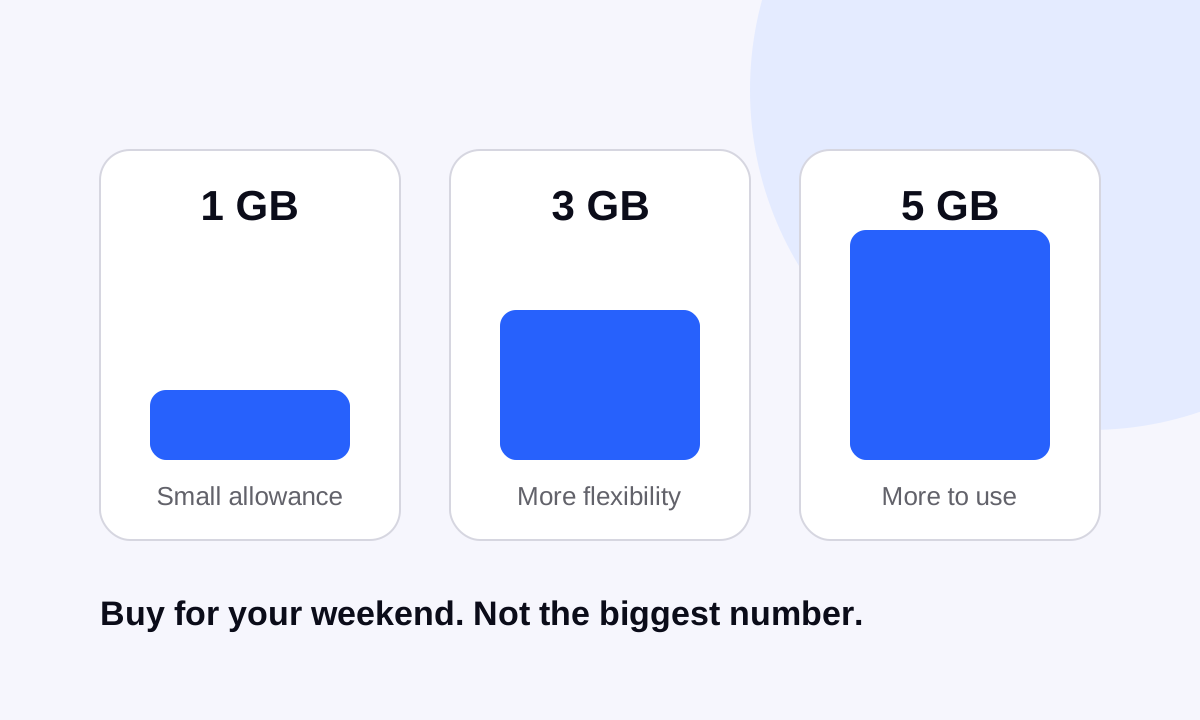
There is no single reliable data allowance for “using maps.” Downloads, satellite imagery, searching, background activity and other apps can change the total. Start with your own usage using our travel data budget guide. For a short trip, the weekend budget comparison explains why the largest bundle is not automatically the right purchase.
Set up the travel line for the route you booked
In Stellar eSIM, choose your destination, buy a suitable plan and follow the installation and activation instructions for that order. Check whether validity starts on installation or a supported network connection before testing the line. Use the app to follow the remaining allowance during the trip.
When it is time to connect, select the intended travel data line and apply its roaming instructions. Review your home line’s roaming terms and automatic switching separately. Our iPhone setup guide and Android setup guide cover the basic device flow.
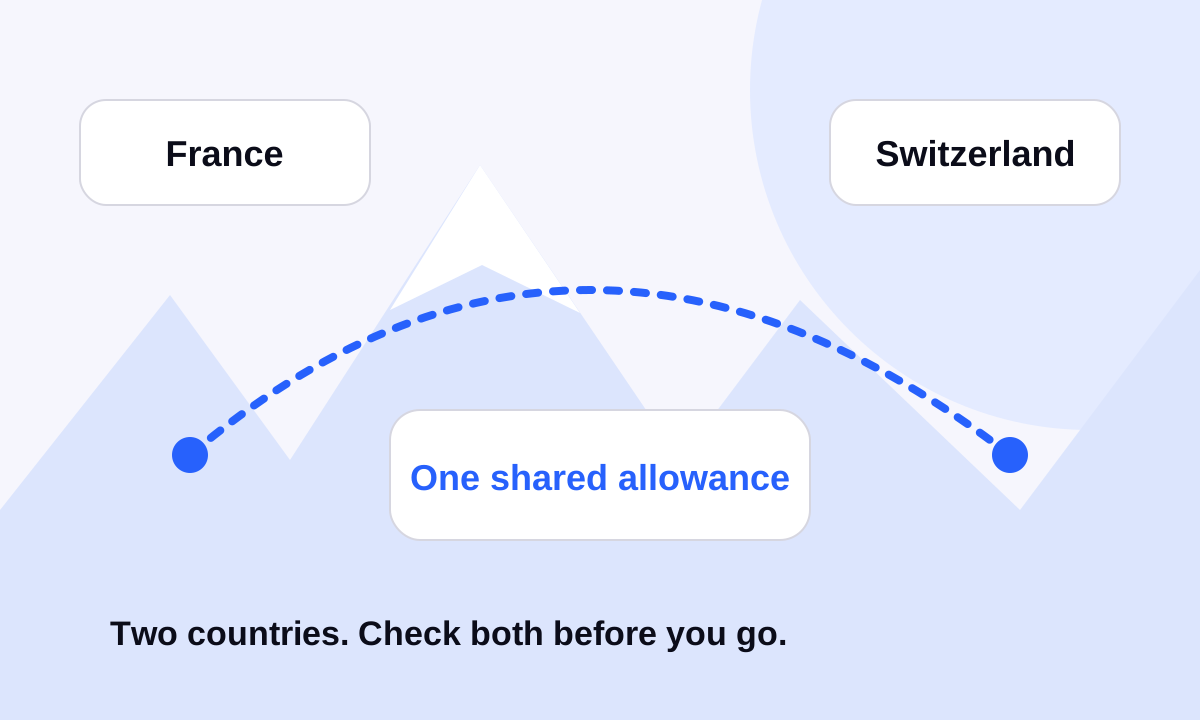
For a route that crosses borders, confirm every country on the exact plan. The France and Switzerland example shows why a regional name alone is not enough. Before you close the suitcase, keep the saved map, important addresses and a connection plan ready together.
Sources & further reading
Product information and device guidance used for this article. Check your selected plan and exact device before purchase or setup.