Confirm your iPhone is ready
Check eSIM support for your exact iPhone model and purchase region. Regional variants can differ. To check carrier locking, open Settings, General, About and look for Carrier Lock. Apple describes “No SIM restrictions” as the unlocked status.
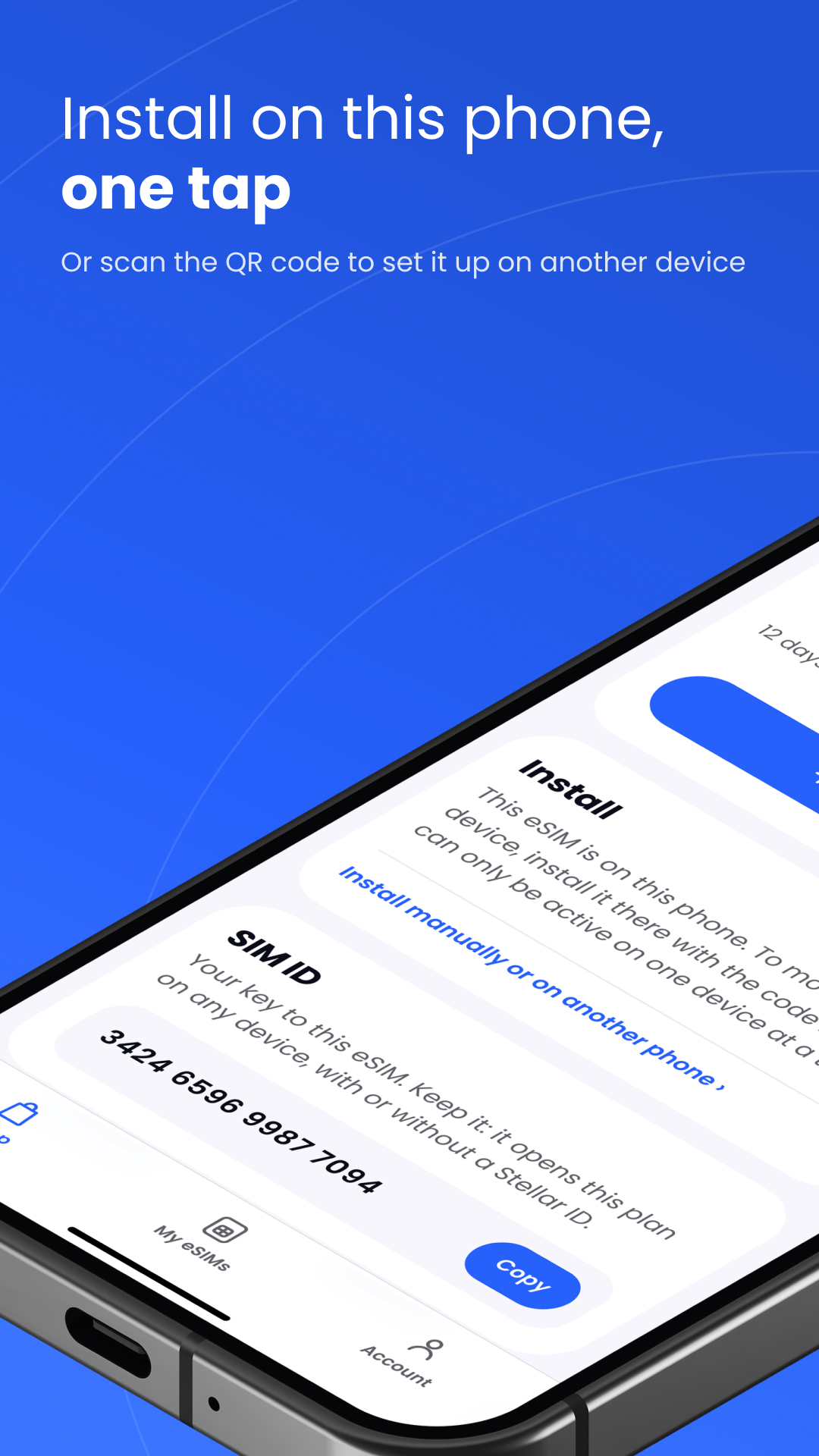
Have your order details available and use a reliable Wi-Fi connection. If the QR code is on the same phone you are setting up, use the provider’s supported in-app or manual method, or display the code on another trusted screen. Do not send it to a public sharing service.
Add the travel profile
Open the purchased eSIM in Stellar eSIM and follow the installation instructions for that order. On iPhone, manual setup generally starts in Settings, Cellular or Mobile Data, Add eSIM. Choose the supported method and confirm the on-screen prompts.
Name the new line something recognisable, such as “Travel Portugal.” The label is for your convenience; changing it does not change coverage. Leave your normal line identifiable too, so you can distinguish the two when choosing data or calls.
Choose the line that pays for data
When the plan should become active, select the travel eSIM under Cellular Data or Mobile Data. Follow the plan’s instructions for data roaming on that line. Review any automatic data-switching option so your phone does not fall back to a home line unexpectedly.
These choices deserve a separate check from the default voice line. A travel data plan does not automatically pay for an ordinary call from your home number. Review your carrier’s call and SMS terms before leaving the home line enabled.
Check the connection after arrival
Temporarily turn Wi-Fi off and open a small web page. If it loads, you have confirmed mobile data rather than the airport Wi-Fi connection. Next, open Stellar eSIM to review the plan and remaining allowance.
If the test fails, check that you are within the plan’s coverage, the line is on and the right line is selected for data. Work through one setting at a time. Avoid deleting the eSIM as a first response: it can turn a connection problem into a reinstallation problem.
After the trip, restore your preferred home data line and turn off a travel line you no longer need. Keep a still-valid plan if you expect to use it again within its terms.
Sources & further reading
Product information and device guidance used for this article. Check your selected plan and exact device before purchase or setup.