Check what each number actually describes
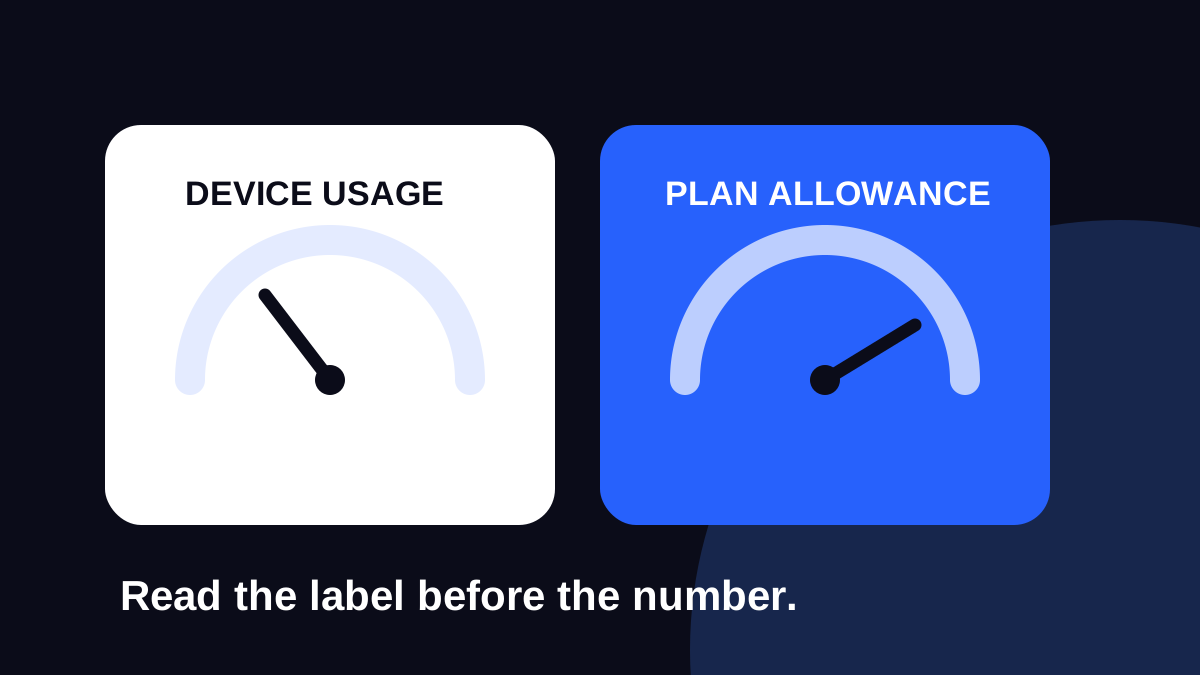
A device counter usually describes usage measured by the phone over a selected period. A plan screen may describe remaining data, data consumed or a particular allowance. Read the label and unit before comparing the numbers.
For a simple arithmetic example, 0.4 GB used from a 1 GB total allowance would leave 0.6 GB if both figures covered exactly the same traffic and there were no other adjustments. Comparing “0.4 used” directly with “0.6 remaining” would look like a disagreement even though the numbers fit. This is a worked example, not a claim about the reporting accuracy or refresh interval of any app.
On iPhone, check the selected line and current period
Open Settings, then Cellular or Mobile Data. Apple’s guidance explains that the statistics include usage by app for the current period. With Dual SIM, check the selected cellular data number before treating a figure as your travel line’s usage.
Check when the statistics were last reset. A counter covering time before departure is not a clean record of the new trip. Apple provides Reset Statistics at the bottom of the cellular settings; record any figures you need before clearing them. That action clears the device statistics, not the purchased allowance.
Apple directs users to the carrier for the most accurate current-period usage. Use the phone’s app breakdown to investigate activity, rather than expecting its total to replace the provider’s record.
On Pixel, choose the SIM and graph period
In Settings, open Network & internet, then SIMs and App data usage. Google’s Pixel instructions describe a period selector and an app breakdown beneath the graph. Check the relevant SIM and dates; Android menus can differ by manufacturer and version.
Google also documents data warnings and a separate data limit. A warning notifies you at the chosen level; a limit can turn mobile data off. Read the device’s message before enabling a limit so that an intentional cut-off does not look like a failed eSIM.
Google notes that a carrier may measure usage differently from the phone. Check the provider’s measurements and plan limits when making an allowance decision. A phone warning is a local setting, not proof that the provider has added data or changed the plan.
If the figures still look wrong, compare a small set of facts
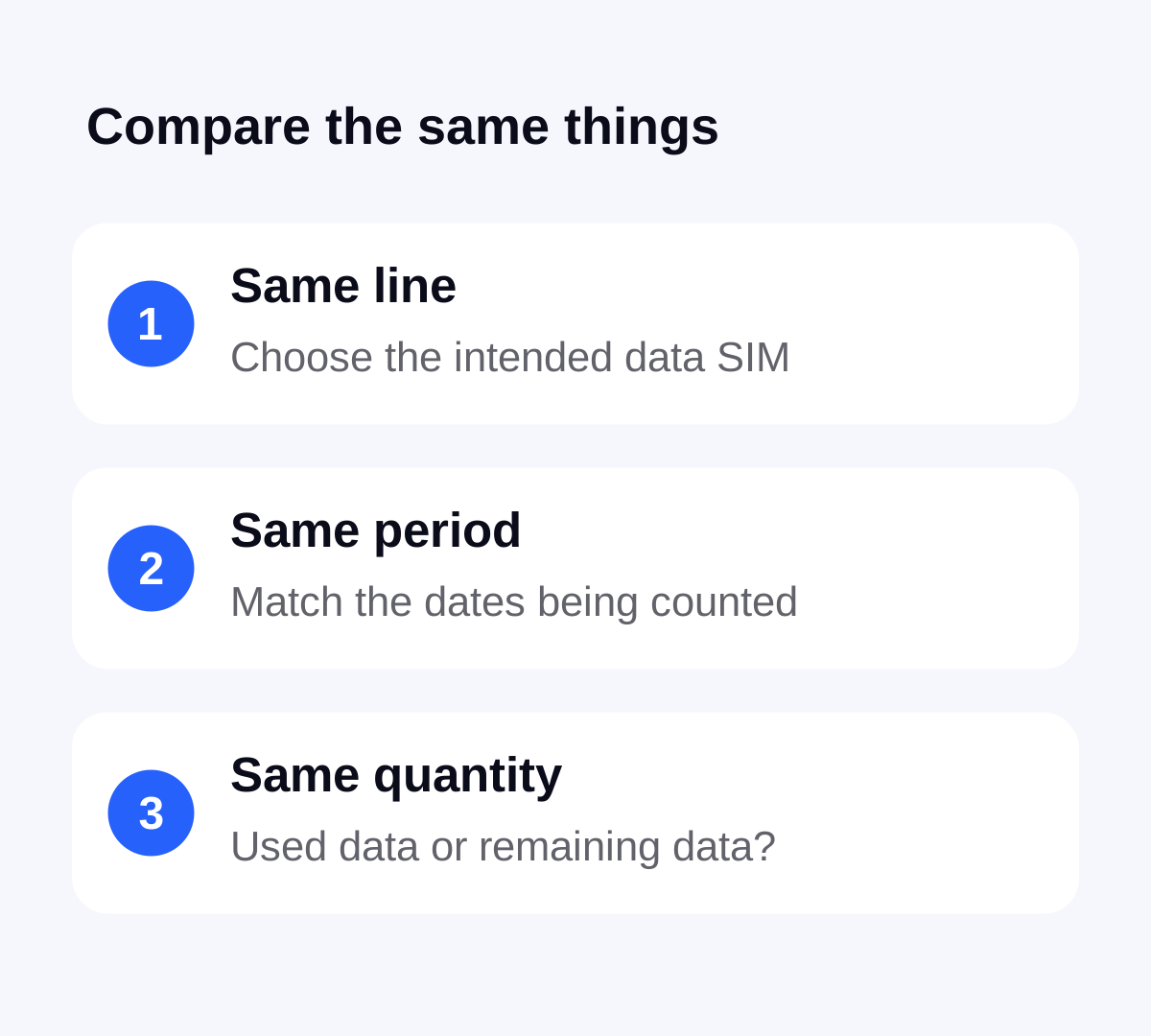
- Confirm the travel SIM is the intended data line. Review automatic switching separately so that another active line is not being overlooked.
- Check the start and end dates of the device graph against the plan period.
- Read whether each number is used data, remaining data, total data or a daily allowance.
- Note the units and any displayed rounding. Keep screenshots with the time of the comparison.
- Review the plan’s current status and expiry as well as its data balance. Remaining data alone does not establish that validity is still running.
Do not assign an unexplained difference to a fixed reporting delay. This guide does not establish a Stellar update interval. If the mismatch affects a decision about buying more data, ask support to check the order before treating the phone’s figure as the final balance.
Use the app breakdown to find the next useful change
Look at the largest items rather than closing apps at random. If photo uploads dominate, review the photo backup controls. If a second device used a hotspot, revisit how shared travel data works. These activities belong in the same trip budget as active browsing.
A VPN does not create a second mobile allowance. The VPN and data guide explains why the underlying connection still matters. For the next purchase, use your own observed activity with the travel data budget guide.
Keep plan management and troubleshooting together
Choose and buy your plan in Stellar eSIM and follow the remaining allowance in the app. Before a long journey away from Wi-Fi, check both the data amount and validity. Leave room for the activities still ahead rather than relying on an exact match between two counters.
If you need help, send the order reference, device model, the relevant time period and the two labelled figures through the official support channel. Keep activation codes, passwords and QR images out of public posts. For a connection failure rather than a balance question, use the eSIM troubleshooting guide to narrow down the issue.
Sources & further reading
Product information and device guidance used for this article. Check your selected plan and exact device before purchase or setup.