Do a small connection check before changing several settings
While you still have a reliable connection, identify the home and travel lines by their labels and order details. If you are still in a transit airport rather than at home, check local coverage and roaming conditions before applying your usual home setup.
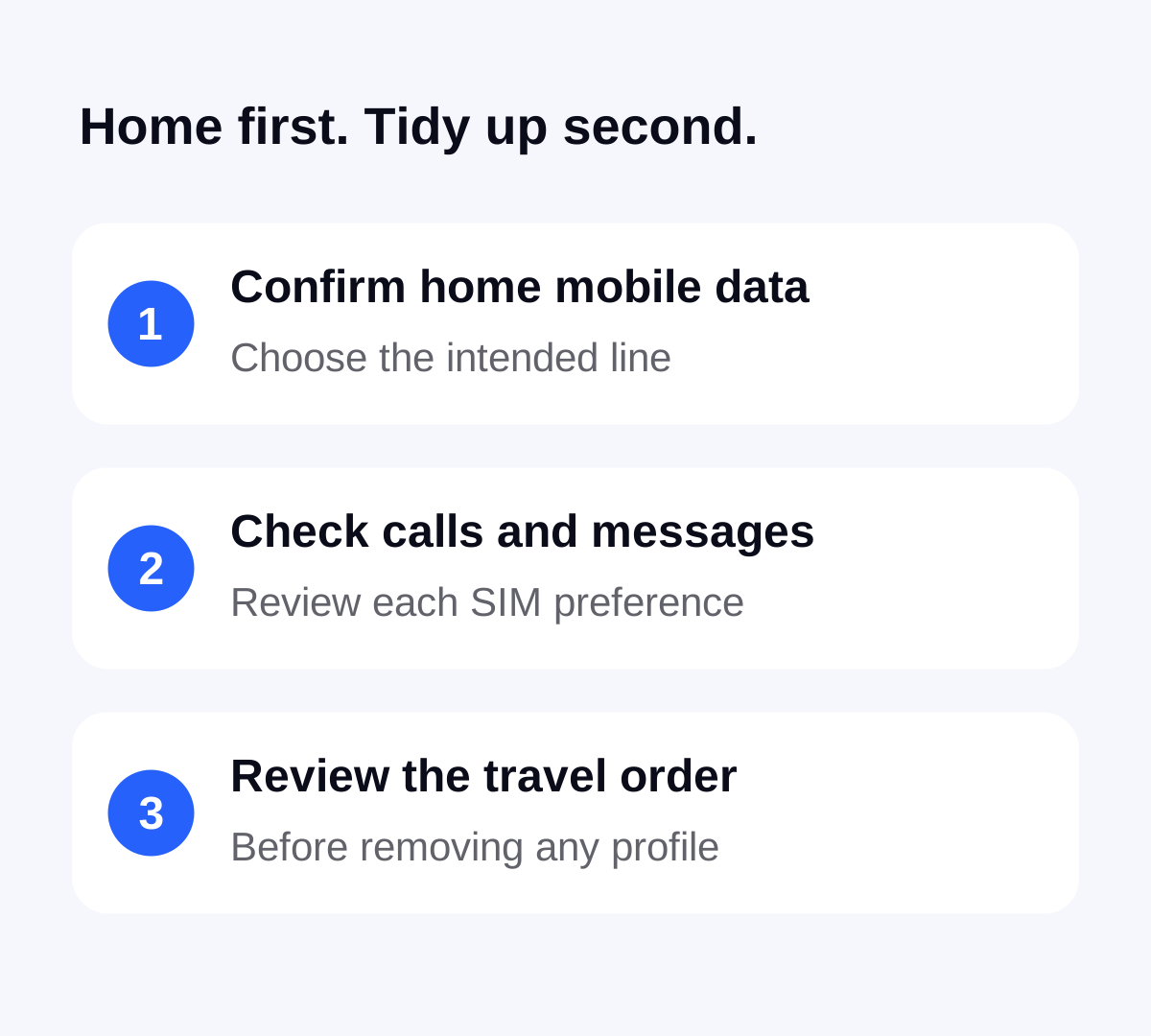
Make one change at a time and check the result. This helps you tell a wrong data-line choice from a coverage problem or an expired plan. Keep important account access available before making changes that might affect how the phone connects.
On iPhone, confirm what actually changed on arrival
Apple says that with iOS 26 or later, travel eSIMs can be turned off and the home SIM restored automatically on return, depending on the country or region. Check the result rather than relying on that behaviour on every phone.
If you did not receive the travel-line notification, Apple directs you to make sure the primary line is enabled in Settings, Cellular, using Turn On this Line. Select the intended line under Cellular Data and turn off travel lines you no longer use. Menu wording can vary by region.
Check the default line for calls separately from mobile data if you changed it for the trip. Our guide to your usual number and travel data explains why a data-line choice does not answer every calls-and-messages question.
On Pixel, review the preferences for each task
Google lets you choose the default SIM for data, calls and texts through Network & internet, then SIMs. Check those choices against the home connection you intend to use. Google also documents temporarily disabling a SIM; that is separate from erasing an eSIM.
Other Android phones can use different menus. Follow the manufacturer’s instructions for your exact model rather than assuming the Pixel layout matches it. Our Android eSIM guide provides context for line selection; it does not replace the home carrier’s service requirements.
Keep three actions separate: switch off, delete and cancel
Switching a travel line off changes whether the phone uses that line. Removing its eSIM deletes the installed profile from the device. Cancelling a purchased service is a provider or account action. One should not be assumed to do the job of another.
Apple explicitly says that cancelling a cellular plan requires contacting the carrier. It also warns against deleting a profile for troubleshooting and notes that a replacement may require carrier help. Check the specific Stellar order before removing something you might still need.
This guide does not promise that an old activation code can be reused, unused data can be refunded or a profile can be moved to a different phone. The phone-change checklist covers the questions to ask before a move.
Review remaining data and expiry before planning another trip
In Stellar eSIM, review the purchased plan and remaining allowance. Returning home does not establish that unused data is usable on a future journey. Check expiry, coverage and any order-specific top-up or reuse conditions before relying on the old plan again.
Turning the line off should not be treated as a way to pause validity or recover days already used. The timing guide explains why the start and expiry rules matter. For the next trip, choose and buy the appropriate plan in the app after checking the actual itinerary.
Check data, calls and messages before putting the phone away
- With the intended home data line selected, briefly disconnect Wi-Fi and try a small online task where your home service is available.
- Check normal calls and messages separately if those are part of your home plan.
- Review any automatic data switching and roaming settings you deliberately changed for the trip.
- Keep the travel order reference until any support question is resolved; remove sensitive installation images from shared devices.
If mobile data still fails, restore a working connection and check with the relevant provider. Avoid clearing several profiles at once. For a travel-line issue, the eSIM troubleshooting guide helps you describe what is failing.
Sources & further reading
Product information and device guidance used for this article. Check your selected plan and exact device before purchase or setup.